
Scheduled Messages in Team Engine
Plan ahead and communicate at the right time.
Scheduled Messages allow you to write a message now and send it at a specific date and time in the future. This is helpful for reminders, announcements, follow-ups, and planned outreach to employees or groups.
Purpose & Benefits
Scheduled Messages help you:
- Send reminders at the right time
- Plan communication in advance
- Ensure consistent outreach to candidates, employees or groups
- Reduce the risk of forgetting important messages
- Save time during busy workdays
This feature is ideal for safety reminders, meeting notices, deadline alerts, policy updates, and more.
How to Schedule a Message
- Navigate to the Messages dashboard.
- Click New Message.
- Select the specific employee(s) or group(s) you’d like to message.
- Write your message content.
- Click the dropdown beside “Schedule Message.”
- Select the date and time you’d like the message to be sent.
- Click Schedule Text to confirm.
Your message will now be scheduled and automatically delivered at the selected time.
Tip: Double-check the recipients, date, and time before confirming.


How to Edit or Cancel a Scheduled Message
If you need to make changes before the message is sent:
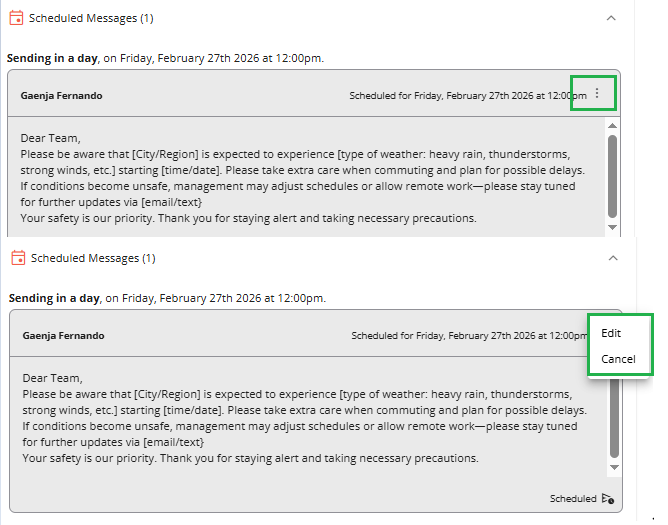
- Locate the scheduled message.
- Click the dropdown next to the message.
- Click the three dots (⋯) icon.
- Choose Edit or Cancel.
You can update the content or cancel the message entirely before it is delivered.

Important Reminder
Once a scheduled message has been sent, it can no longer be edited or canceled.
If changes are needed after delivery, you will need to send a new follow-up message.
Using Scheduled Messages helps you stay organized, proactive, and consistent in your communication — all while giving you time back in your day.