
Why Applicants are Automatically Screened?
For each applicant that applies to your job, Team Engine will initially screen the applications to filter down to those who are the best fits. You can view all screened applicants by clicking on the "Need Review" section on the jobs page.

How Screening Works
Screening helps you find qualified candidates faster by filtering applicants based on your job requirements. You can set screening criteria when creating a job or update them later by clicking the pencil icon to edit the job.
Here's the editing screen for an existing job:
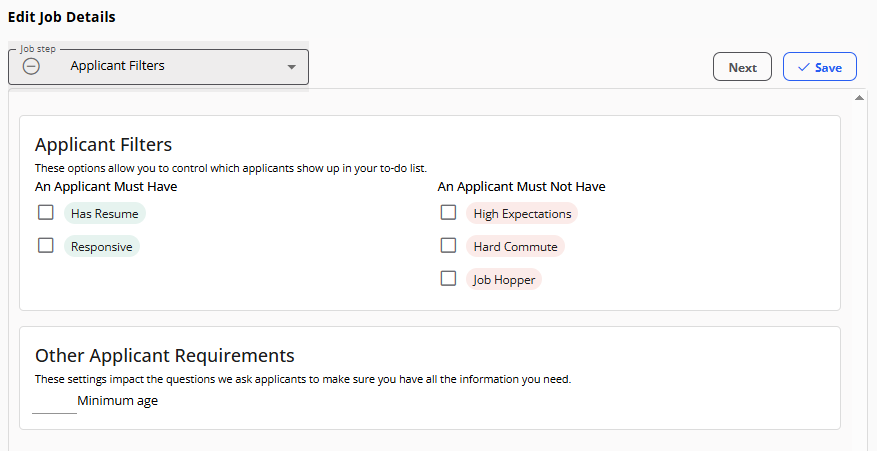
You can click each tag or applicant filter to learn more about its criteria.
- Responsive: The responsiveness filter is how Team Engine saves employers time chasing down applicants who aren't going to respond. If the Responsive filter is added, each applicant will receive an automatic interest confirmation text (or email, if they prefer) from the software. Only applicants who respond and demonstrate a real interest in the job will end up in your applicant pool.
- Has Resume: If a candidate has uploaded a copy of their resume, they will be labeled as has resume. This tag is useful when you have a position that requires a resume that you can download and print out.
- Hard Commute: When someone applies for a job through Team Engine, they input their address. As a result, you will be able to see how far of a commute they will have. Occasionally, a long commute can negatively impact employee retention and the likelihood that an applicant will take the job or show up for an interview. If this proves to be a problem, you can screen out applicants who live further away.
- Job Hopper: Dependable, long-lasting employees provide the most benefit for an employer. With the job hopper filter, no applicant who ends up in your review panel will have changed jobs too many times in the past few years. An applicant is a job hopper if 1. Their most recent job isn’t longer than a year 2. Their average job tenure in the last 3 years is less than a year 3. They haven't had any education that would explain the above.
- High Expectations: If a candidate expects a higher salary than what is provided by the job, they will be marked as High Expectations.
We're constantly trying to add new tags to applicants, so please email us with suggestions at support@teamengine.io.
Licenses, Certifications & Experience Filters
For jobs requiring specific qualifications, you can set required licenses, certifications, and experience levels in the job setup.
Be specific with your requirements. For example, “2+ years of box truck driving experience” is more helpful than “delivery experience.”
Team Engine automatically screens out applicants who don't meet required criteria and ranks the remaining candidates in your Needs Review list.
Personalized by Team Engine
With the Personalized by Team Engine functionality, Team Engine will reach out to applicants to find out whether or not they fulfill all of the job requirements. Before you even review a candidate, you will know if a candidate is responsive, has all the necessary licenses and experience, and why they want to come work for you.

Custom Messages from Personalized by Team Engine
The Personalized by Team engine functionality will automatically analyze applications and ask follow-up questions to help identify the best applicants. Overall, the Personalized by Team Engine functionality changes what it asks based on what the job requires and how a candidate compares to it. For example, we'd only ask about compensation if the candidate has an expected salary outside the range set for the job.
To view or enable the Personalized by Team Engine functionality, click on the three dots next to the job, select "View," then go to "View Automations" and activate the "Application is Completed" automatic message. After that, applicants will start to get automatic, customized messages to fill in the blanks of their application.
Note: Interest Confirmation messages are skipped being scheduled/sent for various reasons:
- Applicant already has a responsive label
- Applicant is moved out of APPLIED status before the message is sent
- The application is complete (has work history OR has a resume)
- The applicant is marked as a highly qualified candidate by other criteria
Common Questions:
Q: Can I change my screening filters after posting a job?
Yes! You can adjust your screening filters anytime. Just open the job, click the Edit button, and update your applicant requirements or filters.
Q: How does Team Engine decide who appears first in “Need Review”?
Applicants are ranked based on how closely they meet your defined criteria — such as responsiveness, distance, and experience — ensuring the best matches show up at the top.
Q: Can I see why someone was filtered out?
Yes! Each applicant profile will include tags and notes indicating which criteria they met (or didn’t meet). This makes it easy to understand how the system screened them.
Q: Can I customize the follow-up questions Team Engine sends to applicants?
Follow-up messages sent through Personalized by Team Engine are automatically tailored to your job requirements. While you can’t edit the automated wording, you can adjust job filters and required details to influence what’s asked or turn off the Personalized by Team Engine and switch to your own customized automated follow up question.