
How Do I Manage My Job on Indeed?
This guide explains how to access your Indeed Employer Dashboard through Team Engine to review and manage your job postings.
Steps to Manage Your Job on Indeed
- Log in to your Team Engine account.
- Navigate to your Recruiting Module (Jobs from the left menu bar)
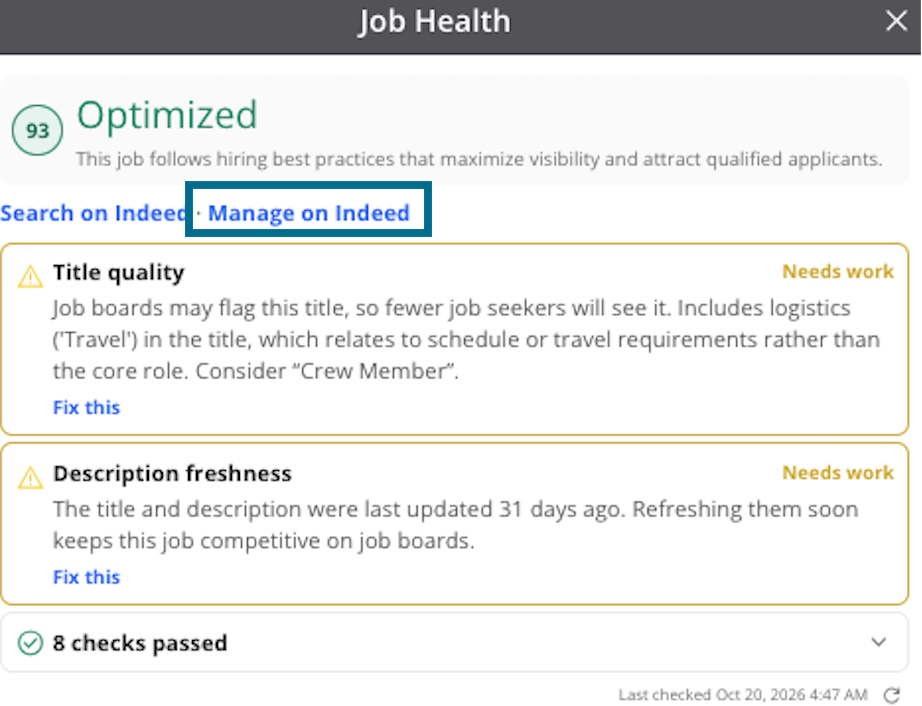
- Click the Job Health Score (the number displayed beside the job on the left).

- Click Manage on Indeed.
- You will be redirected to your Indeed Employer Dashboard. If you are not already logged in, you may be prompted to sign in to your Indeed account.
Where Can I Find My Job in Indeed?
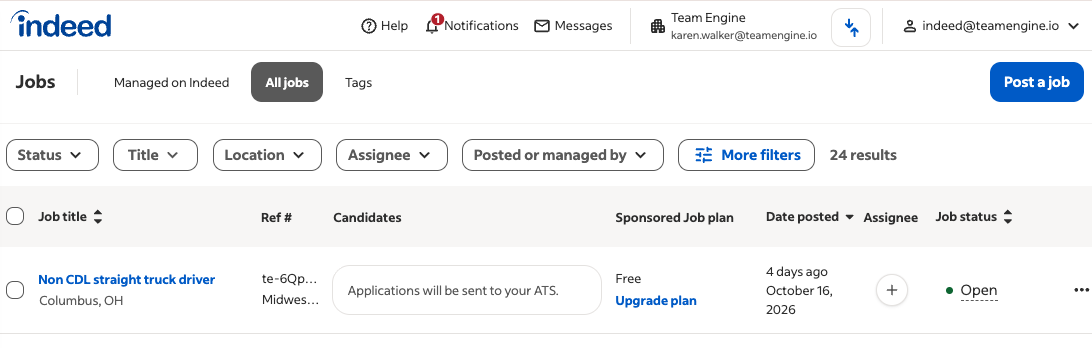
If your Indeed account is properly connected to Team Engine, your job postings should appear under All Jobs in your Indeed Employer Dashboard.
Once you access your dashboard, you can review your job postings and use the management options available for your account.
Having Trouble Accessing Your Indeed Dashboard?
If you cannot access your Indeed Employer Dashboard or locate your job posting:
- Make sure you are signed in to the correct Indeed account.
- Confirm that your Indeed account is properly connected to Team Engine.
- If the issue persists, contact Team Engine Support for assistance.
When contacting support, include the job title, job location, and a screenshot of the issue, if available, to help our team investigate.