
How Can I Send Automated Text Messages in Spanish?
Team Engine allows you to send automated messages in Spanish to employees or applicants who prefer to communicate in Spanish. When setting up automations, you can add a Spanish version of your message so employees receive communications in their preferred language.
If an automation is intended for Spanish-speaking employees, you’ll need to add the Spanish translation to the automation. English messages will not automatically be translated unless you provide a Spanish version.
Steps to Set Up Automated Messages in Spanish
-
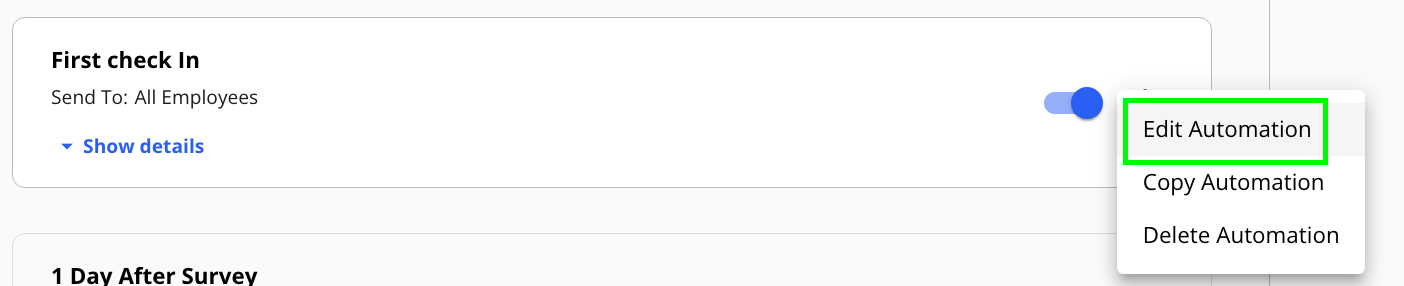
Open your automation. Navigate to the automation you want to update in Team Engine, click the three dots menu to "Edit Automation"
- Review the message. Check whether the automated message is currently written in English.
- Add a Spanish version.
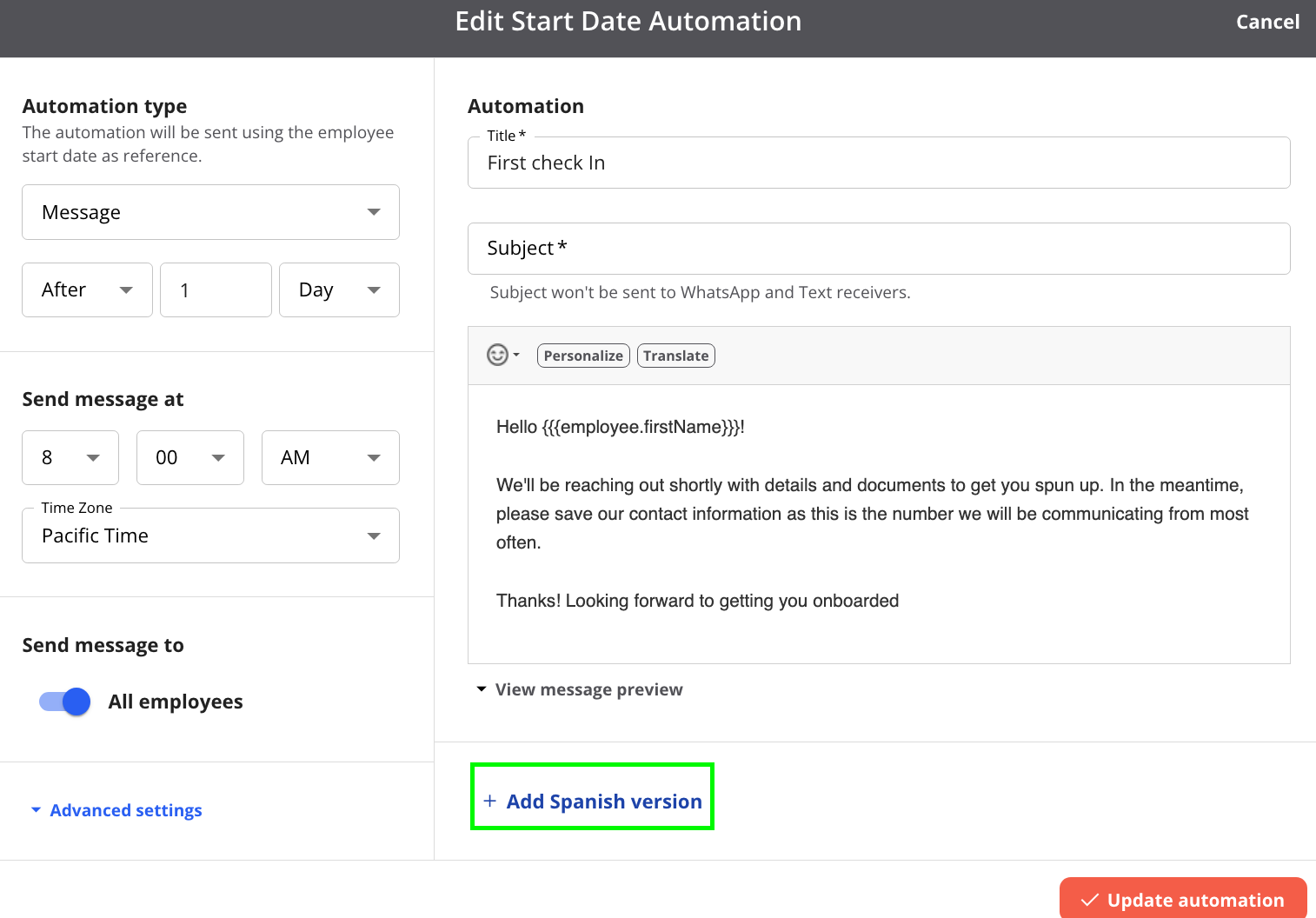
- Add the Spanish message field. Click the + icon next to the notification to open a separate text box for the Spanish version.
- Enter the Spanish translation. Add the translated message in the Spanish text box while keeping the original English version in place.
- Save your changes. Review both versions and save the automation.
Team Engine will use the appropriate message version based on the employee’s language preference.
Best Practice
Make sure employees’ language preferences are correctly configured in their profiles or employee directory. We also recommend having a Spanish speaker review automated messages to ensure translations are accurate, clear, and easy to understand.