
How to Create a Custom Link
You can create custom application links in Team Engine to post your jobs on websites or job boards that Team Engine does not automatically distribute to. These links direct applicants to your Team Engine application form and track which website they came from, helping you identify which sources bring in the most applicants.
Step-by-Step Guide
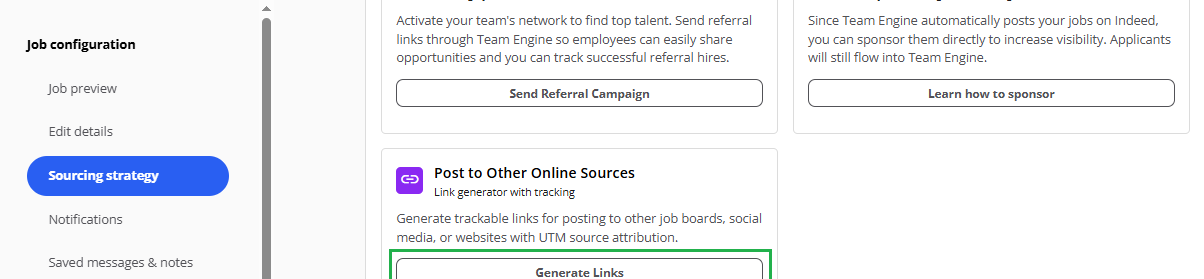
- Go to the job you want to advertise, and click "Get More Applicants".

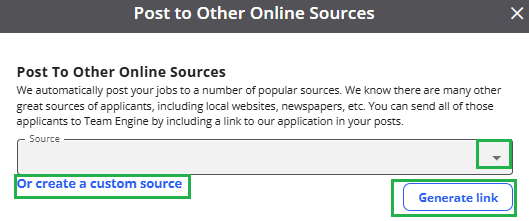
- Scroll down to Customer Managed Sources then on Post to Other Online Sources > click "Generate Links" Pick one of the listed platforms (if available), or choose “Create custom source” and enter the platform’s name.
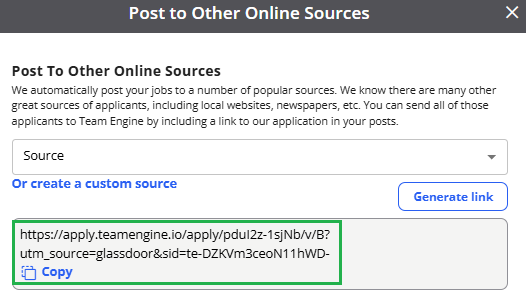
- That link points to the application form and is “tagged” with the source.
-
Log in to the external site (e.g. Craigslist, local job board) and create your job post.
Paste the generated link into the post.
- If there’s a field for application link, put it there.
- If not, add a line in the description like “Click here to apply” with the link.
- Publish the post.
- Applicants who click that link will enter your Team Engine system, and you’ll see which source they came from.
Tips for Best Results:
- Use consistent naming for custom sources (e.g., “LinkedIn - Nashville” or “Craigslist - TX”) to keep reports organized.
- Include a clear call-to-action in your job descriptions: “Apply here using the link below!”