
How do I export applicant data from the Recruiting Module?
How to Export Job Applicant Details
-
From the Recruiting Module (Jobs from the left menu bar), click the graph icon next to any job title.
Choose which data to export:
- A specific job
- All Hiring
- All Jobs

Specific Job:
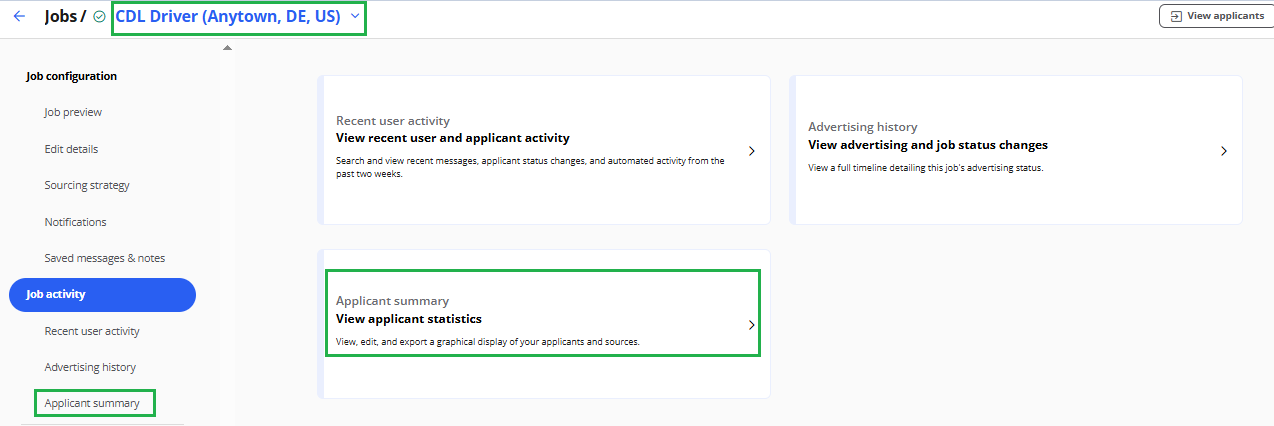
All Active Jobs
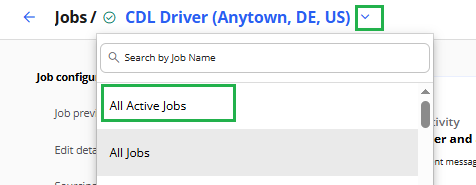
All Jobs:
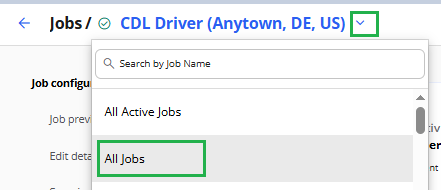
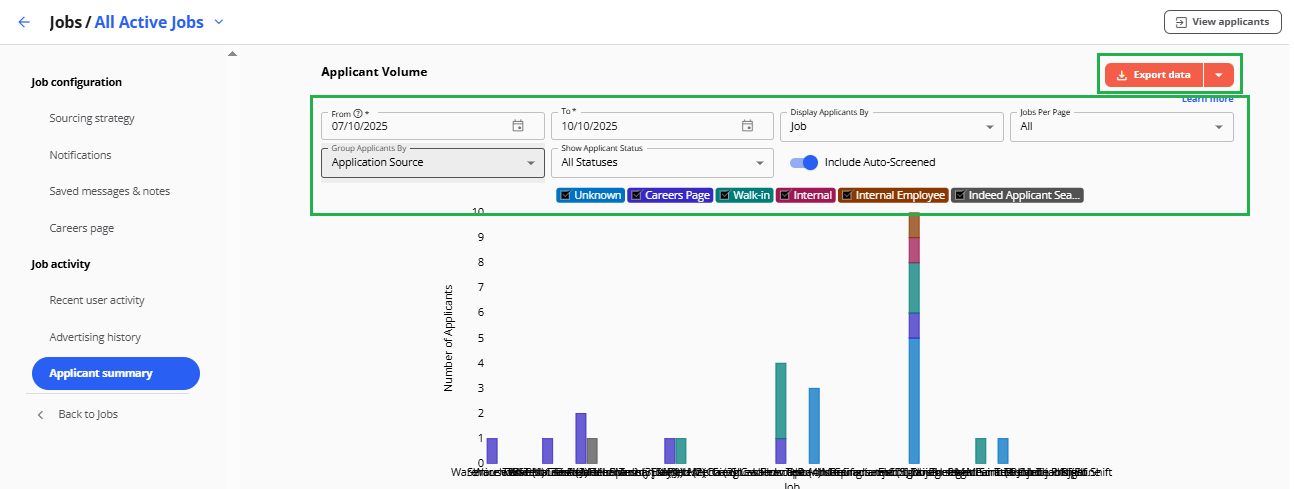
- This will take you to the Applicant Summary page where you can:
- Select your start date and end date for the export period.
- Filter by job, applicant status, or source
-
Click Export Data to download a .csv file that can be opened in Excel or any data analysis tool.
How to Best Use This Data
Here are a few ways to make the most of your exported applicant details:
- Track your entire hiring pipeline — from application to hire — for any job or time period
- Calculate days-to-hire by job title, hiring manager, or location
- View a consolidated list of applicants by status with contact information
- Adjust your recruitment strategy based on rejection reasons or applicant source
- Forecast hiring needs and trends using historical data
Tips & Best Practices
- Always double-check that you’ve selected the correct job(s) and timeframe before exporting.
- CSV files can be customized further with pivot tables, graphs, or dashboards in Excel or Google Sheets.
- Regular exports help you identify bottlenecks and improve your hiring process faster.