
How to update your payment method and billing information.
Need to update your credit card or billing information? You can easily manage your payment details, view past invoices, and update your billing contact information right from your Team Engine account.
Access your billing settings
- Log in to Team Engine.
- Click My Account in the upper-right corner of your screen.
- Select Account from the dropdown menu.
- Click Billing to view your billing information.


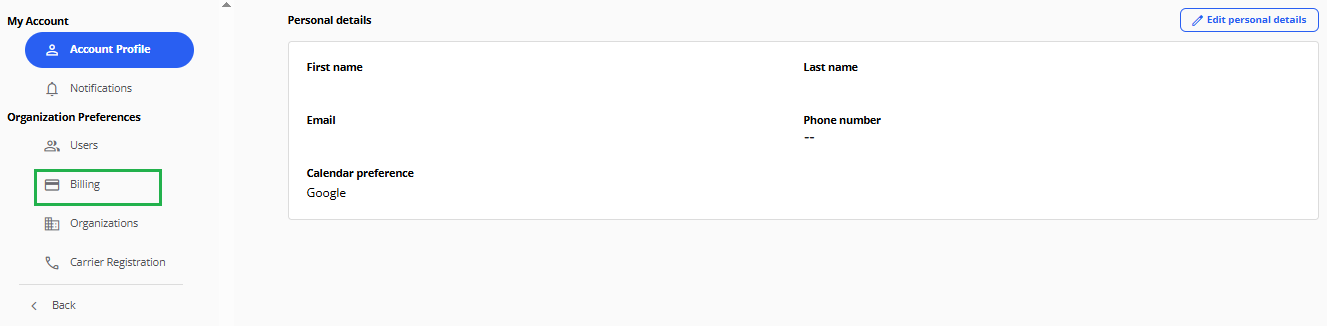
What can I do in the Billing section?
From your Billing settings, you can:
- View your subscription details.
- Download past invoices.
- Add or update your payment method.
- Update the email address used for invoices and receipts.
Add a new credit card
If you don't have a credit card on file:
- Click the orange Add Credit Card button.
- Enter your credit card information.
- Follow the prompts to save your payment details.
Update your existing payment method or billing email
If you already have a credit card on file, you'll see your current payment details and the email address used for invoices and receipts.
- Find the information you'd like to update.
- Click the pencil icon next to that information.
- Make your changes and save your updates.
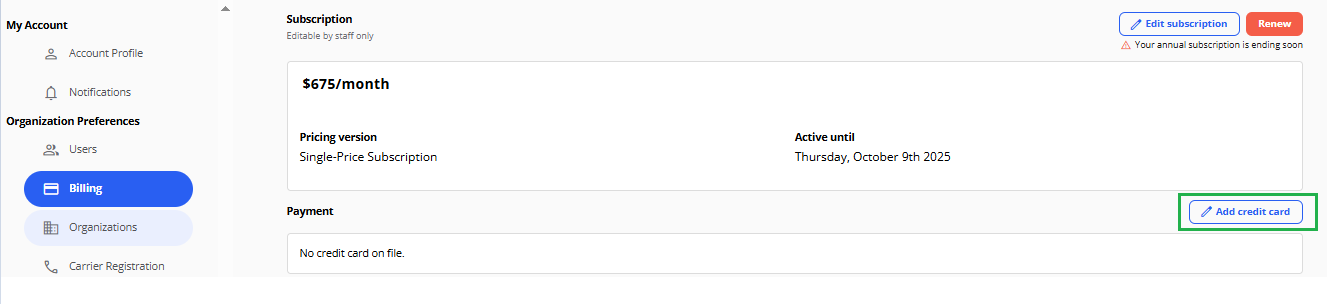
If you already have a card on file, you’ll see your current card details and the email address used for invoices and receipts. To make changes, click the pencil icon next to the information you’d like to update.

A few helpful tips
- Double-check your credit card details to help prevent payment issues.
- If your billing contact has changed, update the invoice email address to ensure invoices and receipts reach the right person.
- Need a copy of a previous invoice? You can download it directly from the Billing section.