
How to Edit or Cancel a Scheduled Message
Scheduling messages in advance is a great way to stay organized and ensure timely communication. If your plans change or you need to update the message before it goes out, Team Engine makes it easy to edit or cancel scheduled messages with just a few clicks.
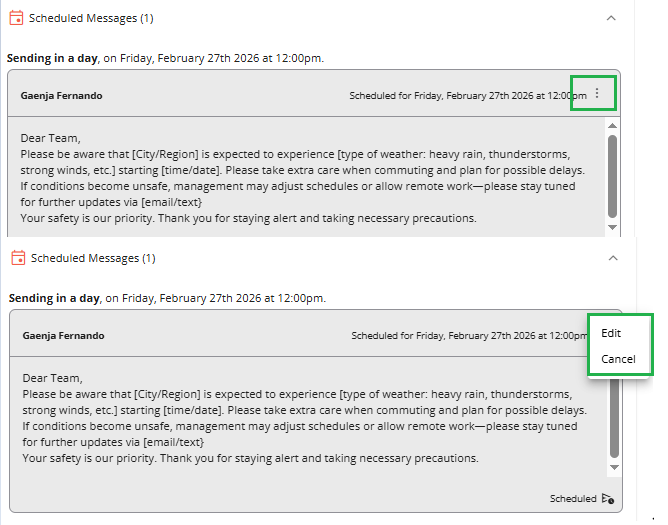
If you need to make changes before the message is sent:
- Locate the scheduled message.
- Click the dropdown next to the message.
- Click the three dots (⋯) icon.
- Choose Edit or Cancel.
You can update the content or cancel the message entirely before it is delivered.

Important Reminder
Once a scheduled message has been sent, it can no longer be edited or canceled.
If changes are needed after delivery, you will need to send a new follow-up message.