
How Do I Create a Custom Employee Survey?
Team Engine allows you to create custom employee surveys to collect feedback on topics that matter to your organization. You can customize your questions, choose recipients, set a response deadline, and save surveys for future use.
Create a Survey
- Navigate to Surveys Module in the sidebar menu.
- Click Create Survey.
- Add your survey questions and message.
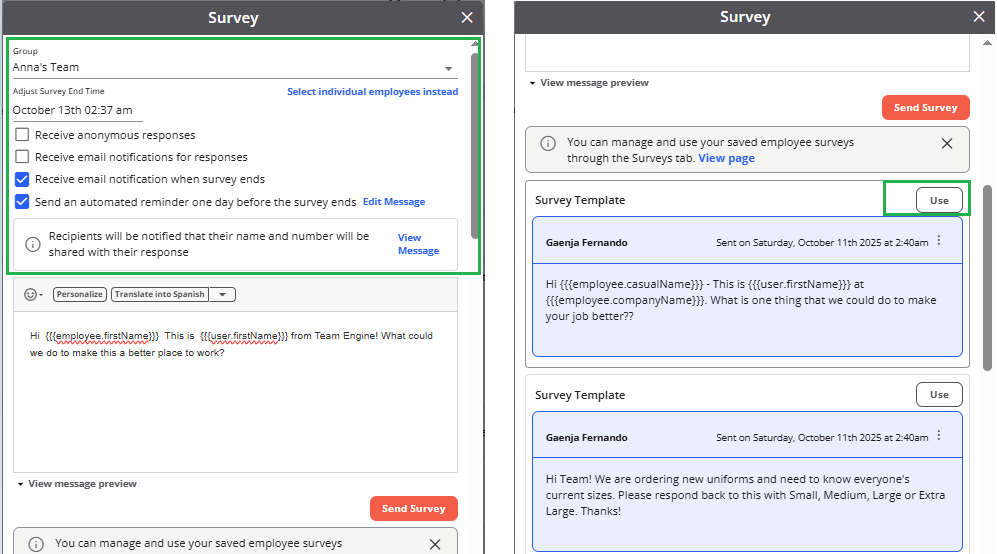
- Choose who should receive the survey. You can select all employees, specific groups, or individual employees.
- Set an end date for responses, if needed.
- Choose whether the survey should be anonymous, if that option is available for your survey.
- Review your message and send the survey.
For more information about anonymous surveys, see How Do I Create Anonymous Surveys to Employees?.
Save a Survey as a Template
If you regularly send the same survey or use a similar message with minor changes, save it as a survey template.
- Create your survey message.
- Save the message as a Saved Survey.
- When you want to reuse it, select Use to automatically populate the message field.
- Make any necessary changes before sending.
Templates are useful for recurring check-ins and surveys that do not follow a fixed schedule.
Add Multiple Questions
You can include more than one question in a survey. For example, you might ask employees to rate their satisfaction with their current role.
Example:
How satisfied are you with your current role?
- Very satisfied
- Somewhat satisfied
- Neutral
- Somewhat dissatisfied
- Very dissatisfied
Because survey responses are collected through text messages, employees may reply using a number, a word, or the full answer. You may need to manually review and categorize responses to ensure consistent reporting.
Personalize Survey Messages
You can use variables to automatically populate employee details in your messages.
For more information, see How Do I Personalize Messages Using Variables?.
Keep Messages Within Character Limits
To help ensure your surveys and messages are successfully delivered, Team Engine follows carrier messaging limits. You’ll see alerts if a message gets too long, so you can adjust before sending.
Here’s what to know:
- If your message uses standard characters, the limit is 1,500 characters.
- If it includes special characters (like emojis 😊, symbols ©, ™, or accented letters é), the limit is 670 characters.
Examples of special characters:
- Accented letters: á, â, ç, í
- Mathematical symbols: ½, ≠, ∞
- Other symbols: ¢, §, ©, ®, ™
Tips:
- Edit your message to fit within the limit.
- Remove unnecessary emojis or special characters.
- If your message is still too long, consider sending it by email instead.
Keeping messages within these limits helps prevent filtering and ensures better deliverability.
Notifications & Reminders
- Enable email notifications to get updates for every response.
- Turn on automatic reminders one day before the survey ends to increase participation.